How to Clear the Wi-Fi Settings on a myQ Wi-Fi Product
myQ® Wi-Fi Reset Help
If you get a new router or change your wireless network name, password, or security settings, you will need to clear the Wi-Fi settings on your hub or garage door opener and reconnect. Choose the Wi-Fi product you have and follow the steps to clear the Wi-Fi settings.
Wi-Fi Garage Door Opener
Erase the Wi-Fi Settings
- Press and hold the black adjustment button between the arrows on the garage door opener until 3 beeps are heard. There is an initial beep, continue to hold the button for approximately 6 seconds, during this time the up arrow will be flashing. The opener will beep an additional 3 times. NOTE: If there are no Wi-Fi settings to clear indicated by no LED behind the adjustment button, you will only hear the initial beep.
- Wait a few seconds for the LED light to turn off. Wi-Fi settings are clear.
For a wall-mounted Wi-Fi garage door opener, the black adjustment button is located under the front cover. Lift the cover-up and locate the button.
To reconnect the opener to your home Wi-Fi network, see How to connect a MyQ Wi-Fi garage door opener to a home Wi-Fi network.
To reset the Wi-Fi garage door opener back to the factory default settings, see How to Factory Reset a Wi-Fi Garage Door Opener.
myQ Garage, myQ Home Bridge, myQ Smart Garage Hub, and Smart Garage Control
Clear the Wi-Fi Settings
- The green LED must be on or flashing to erase the Wi-Fi settings.
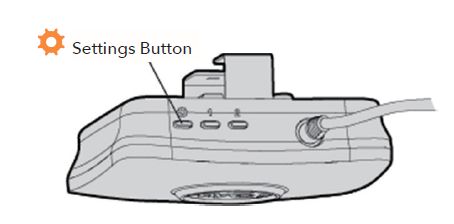
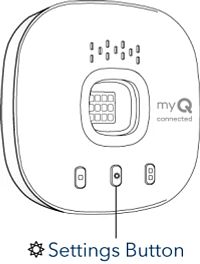
- Press and hold the settings (gear) button on the side of the hub until the blue LED starts flashing. Once the LED is flashing blue, the Wi-Fi is ready to be set up.
Smart Garage Hub
Smart Garage Control
Set the Hub or Bridge to Factory Default
Note: Performing a factory reset on the hub or bridge will clear the Wi-Fi settings, door sensors and removes the devices from the myQ account.
- The green LED must be on or flashing to clear the Wi-Fi settings.
- Press and hold the settings (gear) button on the side of the hub until the blue LED starts flashing.
- Immediately, press and hold the settings (gear) button a second time, until either the blue LED pauses or a beep is heard. The hub is set to factory default.
To connect the myQ Smart Garage Hub and Smart Garage Control to Wi-Fi, see How to Connect a myQ Smart Garage Hub or Smart Garage Control to a Home Wi-Fi Network.
https://support.chamberlaingroup.com/s/article/How-to-clear-the-Wi-Fi-settings-on-MyQ-Wi-Fi-product