How To Factory Reset a myQ Device
Below are the steps to reset a myQ Garage, myQ Garage Smart Hub or myQ Smart Garage Control Wi-Fi hub settings or return them back to factory default.
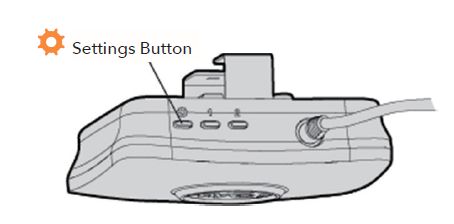
Smart Garage Hub
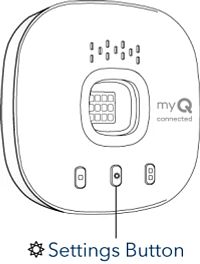
Smart Garage Control
Erase Wi-Fi Settings
Erasing the Wi-Fi settings allows you to reset the Wi-Fi settings on the hub.
- The Green LED MUST be on or blinking to erase Wi-Fi settings.
- Press and hold the Settings button (gear) on the hub until the blue LED blinks. The Wi-Fi is ready to be setup.
Factory Default
Setting the hub back to factory default erases the Wi-Fi settings, erases door sensors, removes the device from the myQ account, and clears any remotes and/or keyless entries that have been programmed to it.
- Press and hold the Settings button (gear) on the Wi-Fi hub until the blue LED blinks then release.
- While the blue LED is blinking, press and hold the Settings button (gear) again until the blue LED pauses then blinks or beeps. The Wi-Fi hub is set to factory default.
Clear Button #1 and #2
- Press and hold button #1 - a yellow LED light will turn on. Hold the button until the yellow LED turns off.
- Press and hold button #2 - a yellow LED light will turn on. Hold the button until the yellow LED turns off.
NOTE: If the lights on the hub are blinking blue and green, you will need to unplug the router to erase the Wi-Fi settings or set to factory default.
https://support.chamberlaingroup.com/